Understand the Dashboard, Menus, and Workspace
Welcome to Cascade CMS! Once you're logged in, this guide will help you get your bearings. You'll learn to use the dashboard, browse your site's files, and understand the naming conventions that keep everything organized for our entire team.
On This Page:
Instructions
1. Your Dashboard
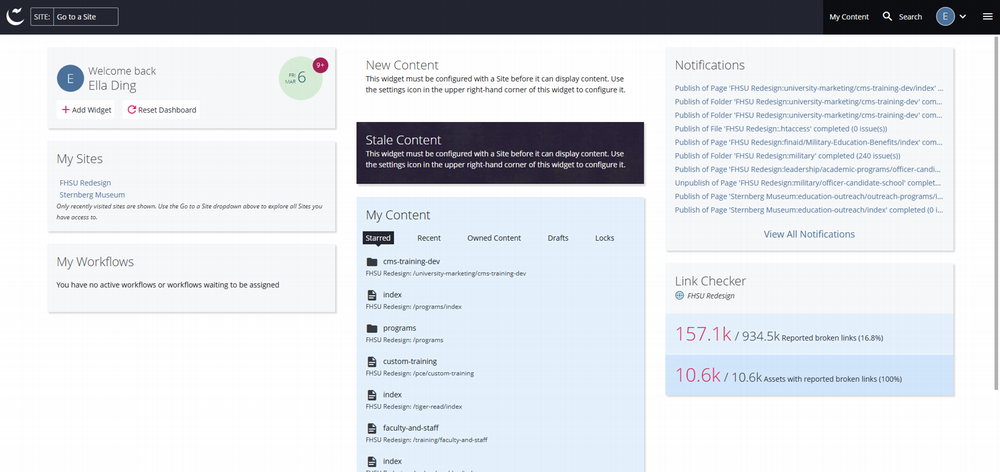
The dashboard is your personalized home base in Cascade, appearing right after you log in. It's designed to give you instant access to your content and important updates.
- Widgets at a Glance: The dashboard uses customizable widgets. You'll see widgets for your sites, recent content, system notifications, and analytics. Think of them as your command center.
- Make It Yours: You can add, remove, or rearrange these widgets to perfectly fit your workflow. Set it up the way you work best.
For an official overview, see Hannon Hill's Cascade Basics - The Dashboard
2. Finding Your Site & Files
Ready to see your website files? Here’s how to navigate from the dashboard to your content folder.
- Go to Your Site: In the top header, click "Go to a Site" and select "FHSU Redesign" (or your specific site name). You can also use the "My Sites" widget on your dashboard as a shortcut.
- Browse Your Files: Once inside, you'll see your site's folder structure. You can explore it in two ways:
- Use the Sidebar: Click the arrows to expand and collapse folders for a quick, tree-like view.
- Use the Main Area: Double-click folders in the main content window to drill down and view the assets inside.
- Quick Navigation Tip: Need to jump back to the top level of your site? Just click the "Site Content" link in the header—it's there whenever you need it.
Best Practices: Naming Conventions
1. Naming Conventions
Consistent names help everyone—from content authors to developers—quickly understand a file's purpose at a glance. Please follow these guidelines for all new assets.
| Name | Type | Usage |
|---|---|---|
index |
Page | The page inheriting the name of the folder it is located in |
documents |
Folder | Stores documents such as PDFs, word documents, etc. |
images |
Folder | Stores images such as PNGs, JPEGs, WEBPs, etc. |
_archive |
Folder | Stores pages and assets no longer in use |
_callout-contact |
Block | The sidebar callout displaying contact information |
_menu |
Block | The sidebar menu used to navigate the current section |
2. Understanding Suffixes
Suffixes add a special instruction to an asset's name:
-
-index: This suffix tells a block to only appear on the main (index) page of its section. For example, a block named_callout-contact-indexwould override the default contact block on just that section's homepage. -
-dev: This marks an asset as a developer draft. It's a work-in-progress and should not be published for public view. For example,index-devmight contain test changes for a major page update.
Next: Creating Content
Now that you can navigate Cascade, you're ready to start building.
For more information, see Creating Content